Learn how to create an inquiry form in Sous to collect leads, manage requests, and start a more efficient booking process straight from your website.
Navigating to the Inquiry Form
In the left-hand navigation menu, click Inquiry Form.
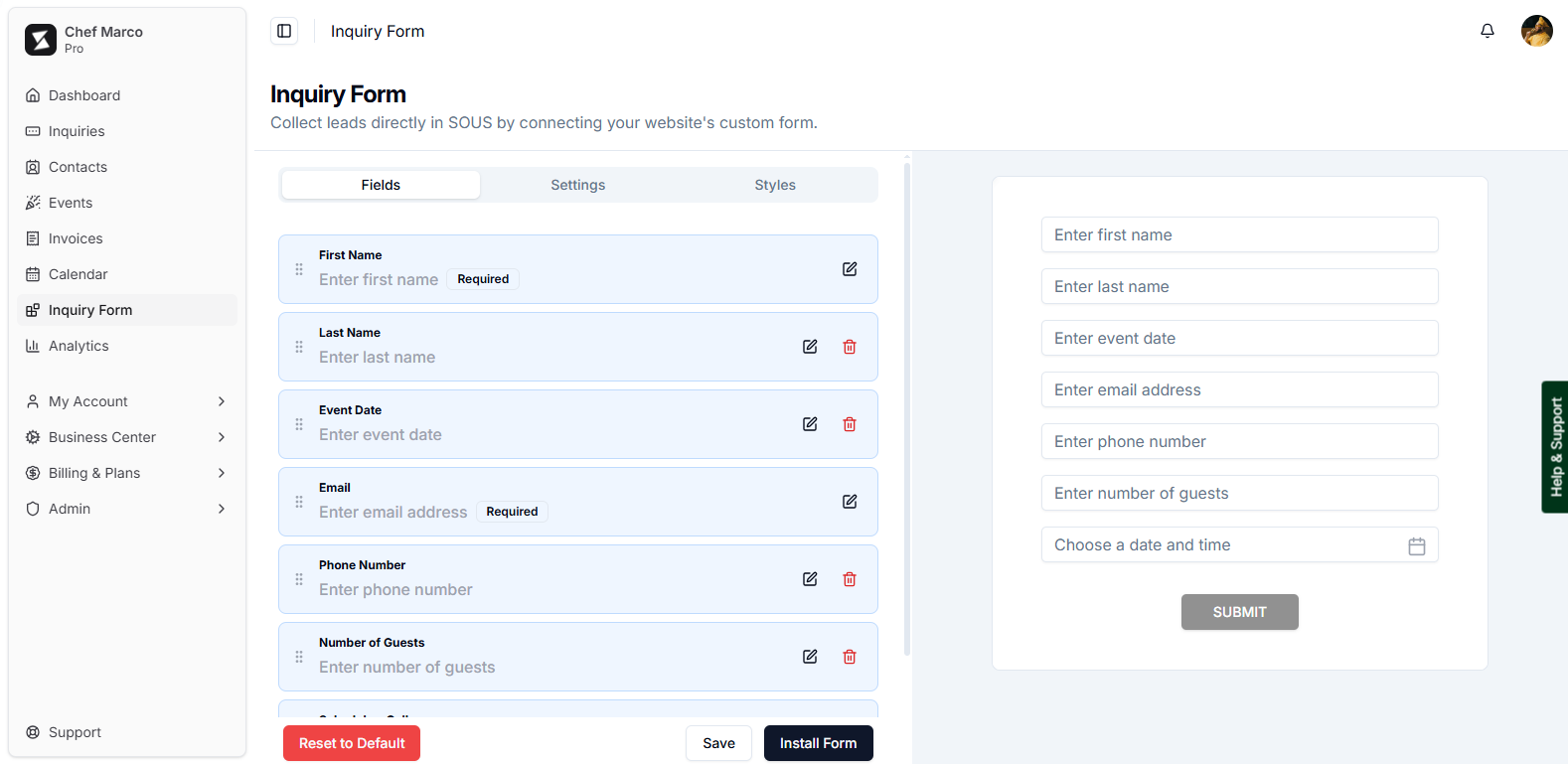
You will see three tabs at the top of the page: Fields, Settings, and Styles.
Configure Your Fields
The Fields tab is for managing the information you want to collect. By default, the form includes the following fields:
- First Name (Required)
- Last Name
- Event Date
- Email (Required)
- Phone Number
- Number of Guests
- Choose a date and time — for scheduling a call
Each field displays it's label, placeholder text, and whether it is marked as Required. First Name and Email are required and cannot be removed.
Editing a Field
To edit any field, click the pencil icon on the right side of that field's row. You can update the placeholder text to match your brand voice.
Removing a Field
To remove an optional field, click the red trash icon on the right. Required fields (First Name and Email) do not have a delete option and will always appear on the form.
Reordering a Fields
Drag any field up or down using the six-dot handle on the left side of its row. The live preview on the right side of the screen click Save.
Resetting to Default
If you want to start over, click the Reset to Default button at the bottom left of the page. This restores all fields to their original configuration.
Configure Your Settings
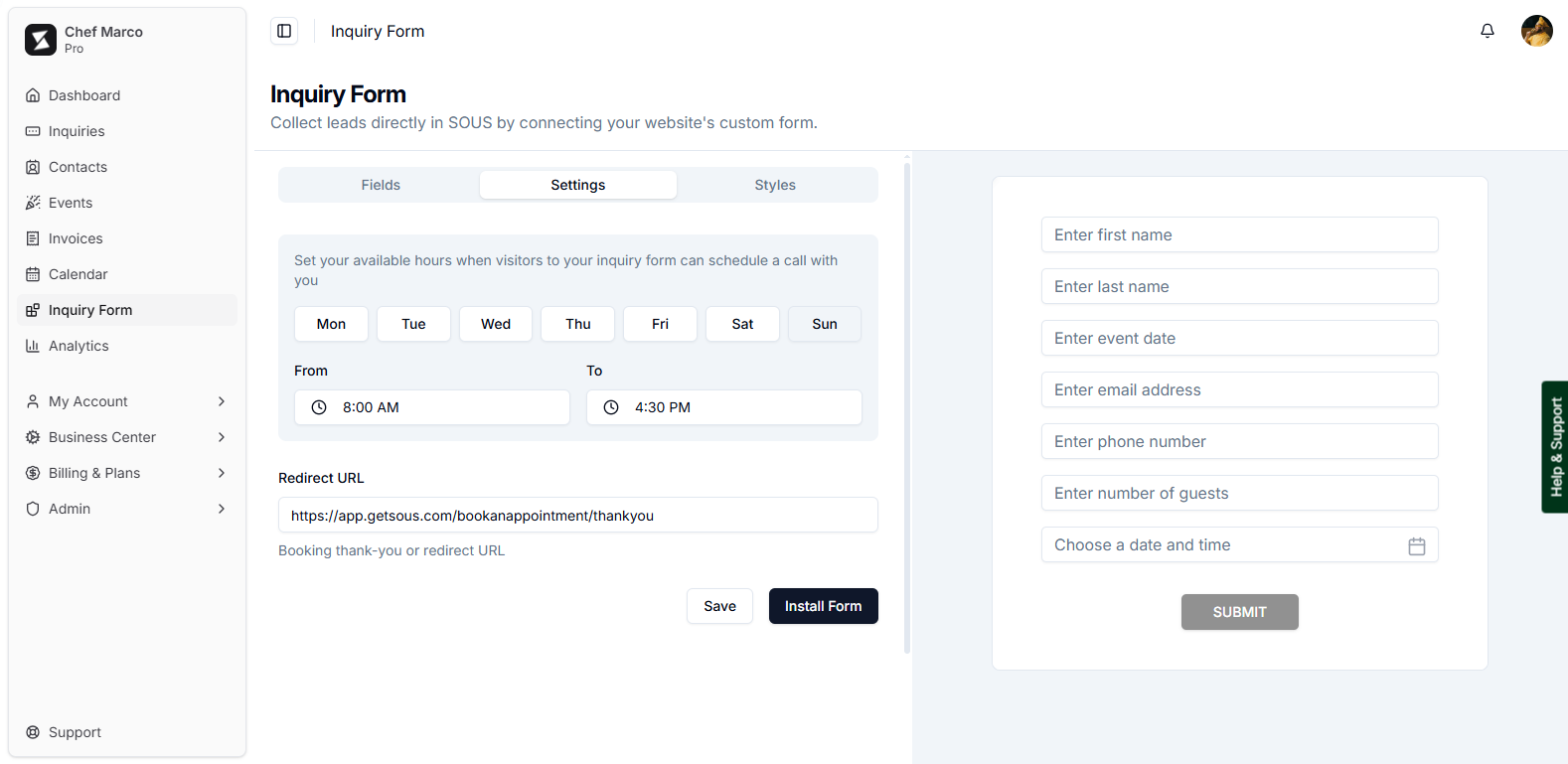
Click the Settings tab to control how and when clients can schedule a call through your form, and where they land after submitting.
Availability Days
Select the days of the week you are available for scheduled calls. Clients will only be able to choose from the days you mark as available when picking a date and time on the form.
Time Availability
Set your earliest and latest available call times. This defines the time window shown to clients on the scheduling field, ensuring you only receive inquiries during hours that work for you.
Redirect URL (Thank You Page)
Enter a URL to redirect clients to after they successfully submit the form. This is typically a custom Thank You page on your website. If left blank, clients will see a default thank you message.
Style Your Form
Click the Styles tab to customize the visual appearance of your form so it matches your brand. The following options are available:
- General: Sets the overall background color of the container and scheduler font colors.
- Text Field: Controls the field background, fonts, radius, and warning text.
- Button: Customizes the background and font colors of the Submit button.
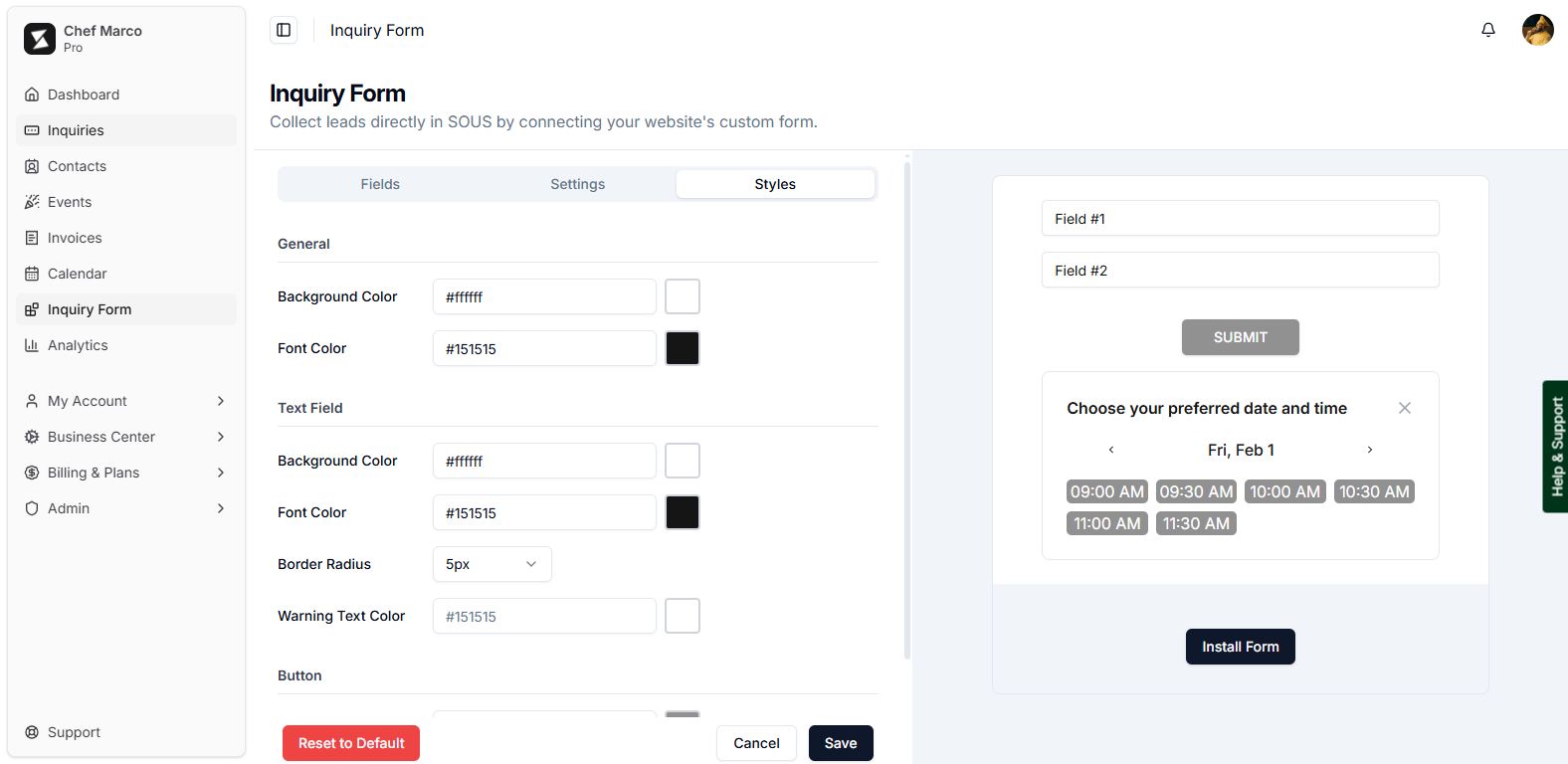
The live preview on the right-hand side of the page reflects all style changes once saved, so you can see exactly what your clients will see before publishing.
Save and Install Your Form
Once you are happy with your fields, settings, and styles, you have two options at the bottom of the page:
- Save: Saves your current configuration without publishing it to your website.
- Install Form: Generates the embed code you need to add the form to your website. Click this button, then copy the provided snippet and paste it into your website builder as an 'HTML', 'Embed', or 'Code' block where you want the form to appear.
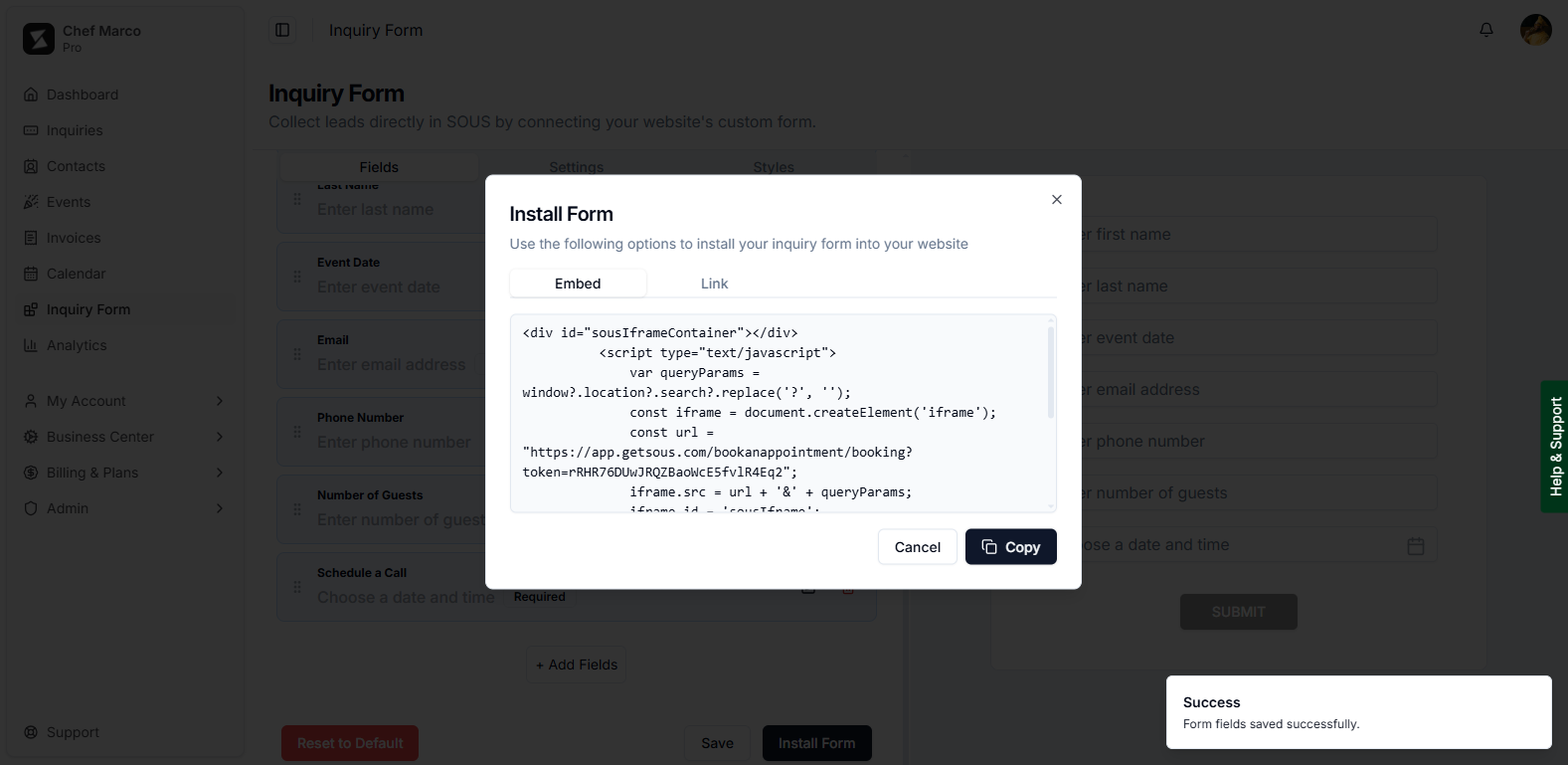
Once installed, every new submission from your website will appear instantly in your Inquiries dashboard, ready for you to action.
Was this article helpful?
That’s Great!
Thank you for your feedback
Sorry! We couldn't be helpful
Thank you for your feedback
Feedback sent
We appreciate your effort and will try to fix the article