RSVPs make it easy to collect guest information for an event without requiring your client to chase people down one by one.
Create an RSVP in Sous, send the link to your client, and let their guests respond directly. As guests respond, Sous automatically organizes their information on the event so you can see who's attending, who has allergies, or whether they're bringing a +1 and/or children.
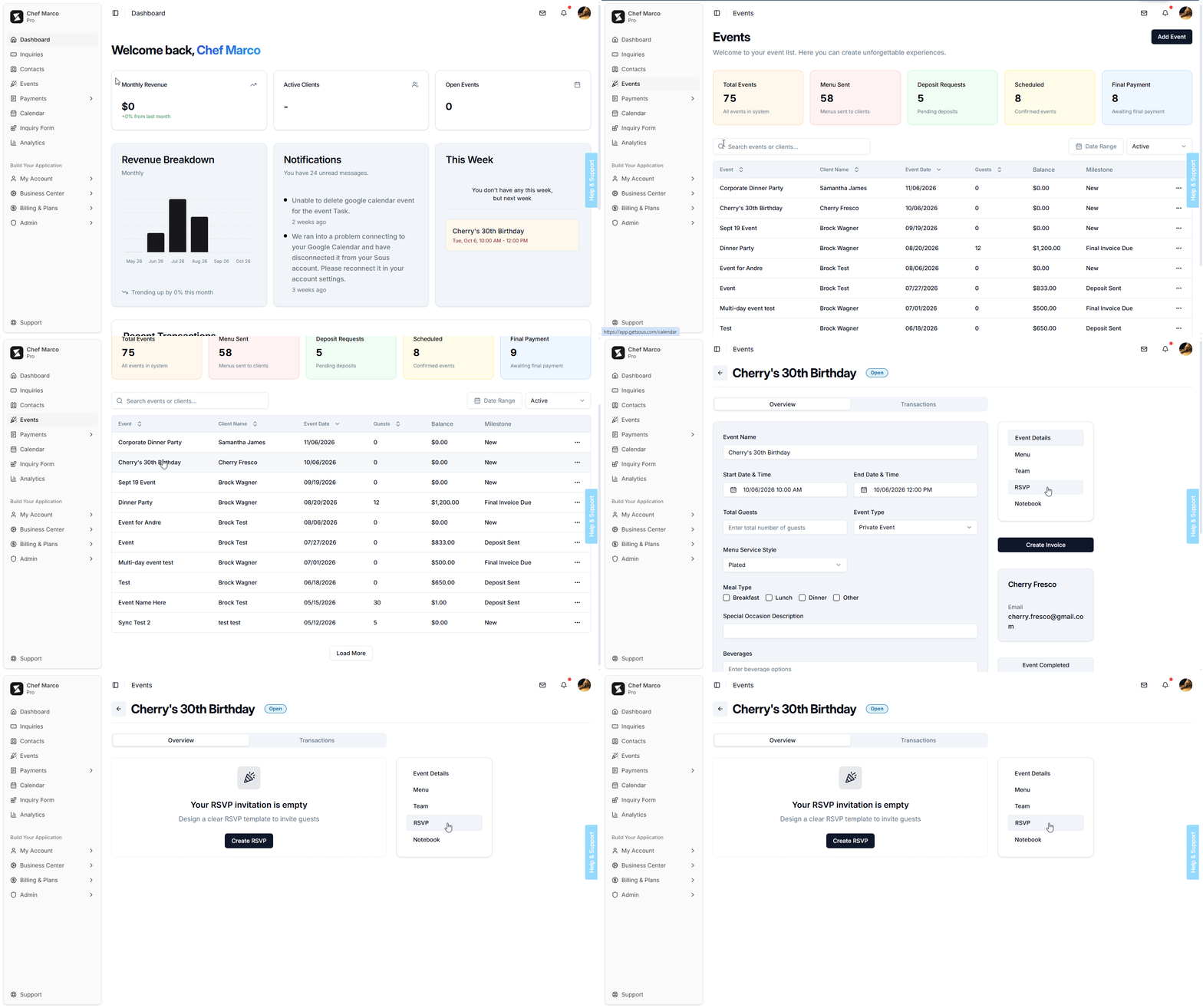
Open the Event
From the Events menu, open the event you want to create an RSVP for.
From the right side of the Event Details page, select RSVP.
Create the RSVP
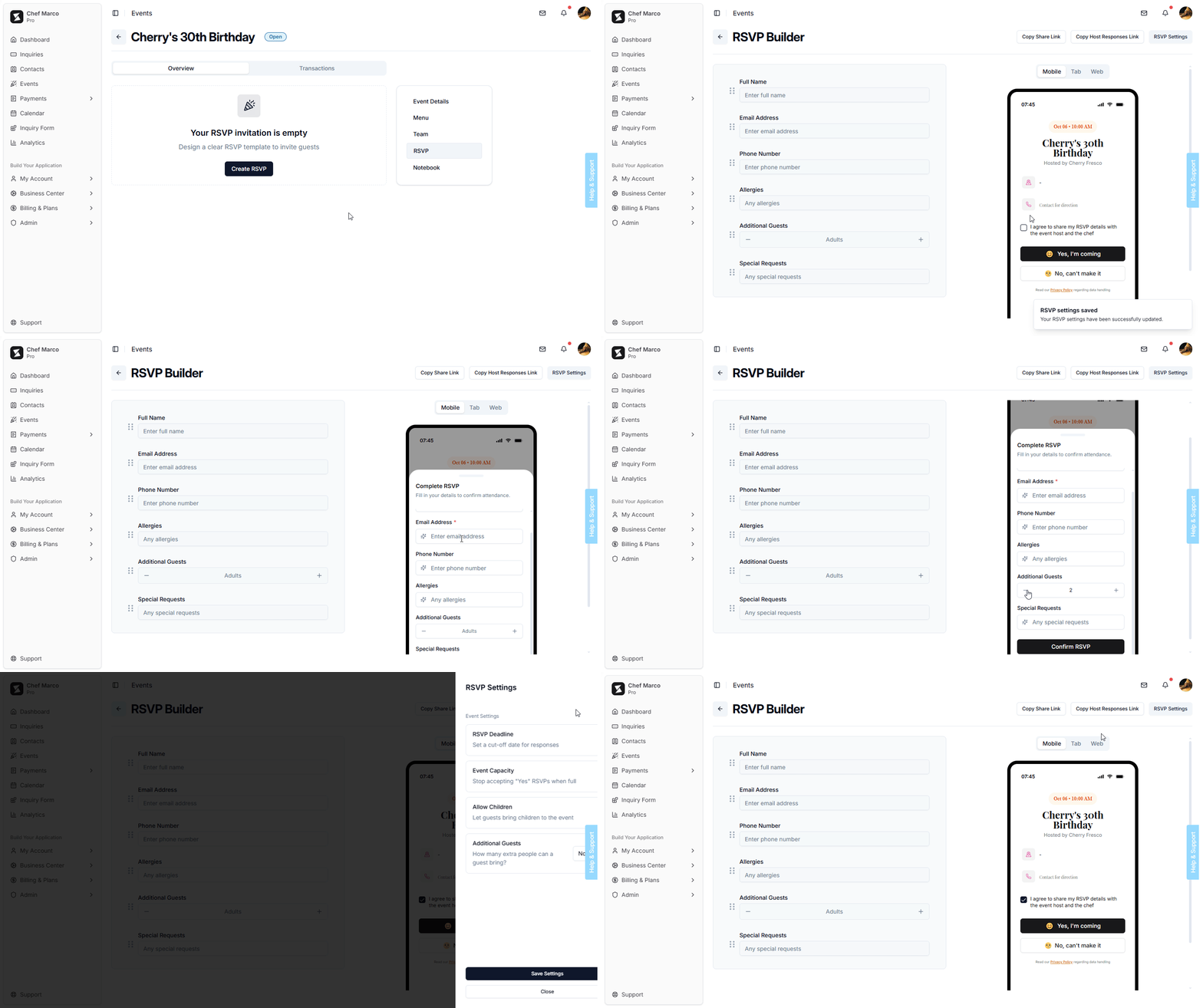
- On the RSVP page, select Create RSVP.
- Use the RSVP Builder to set up your RSVP and preview what guests will see.
Use the interactive preview

• Check the box, click a response, play with the fields and see how the experience will be for your client and guests before sending.
• Select Mobile, Tab, or Web to preview how the RSVP will look on different screen sizes.
Set your RSVP Settings
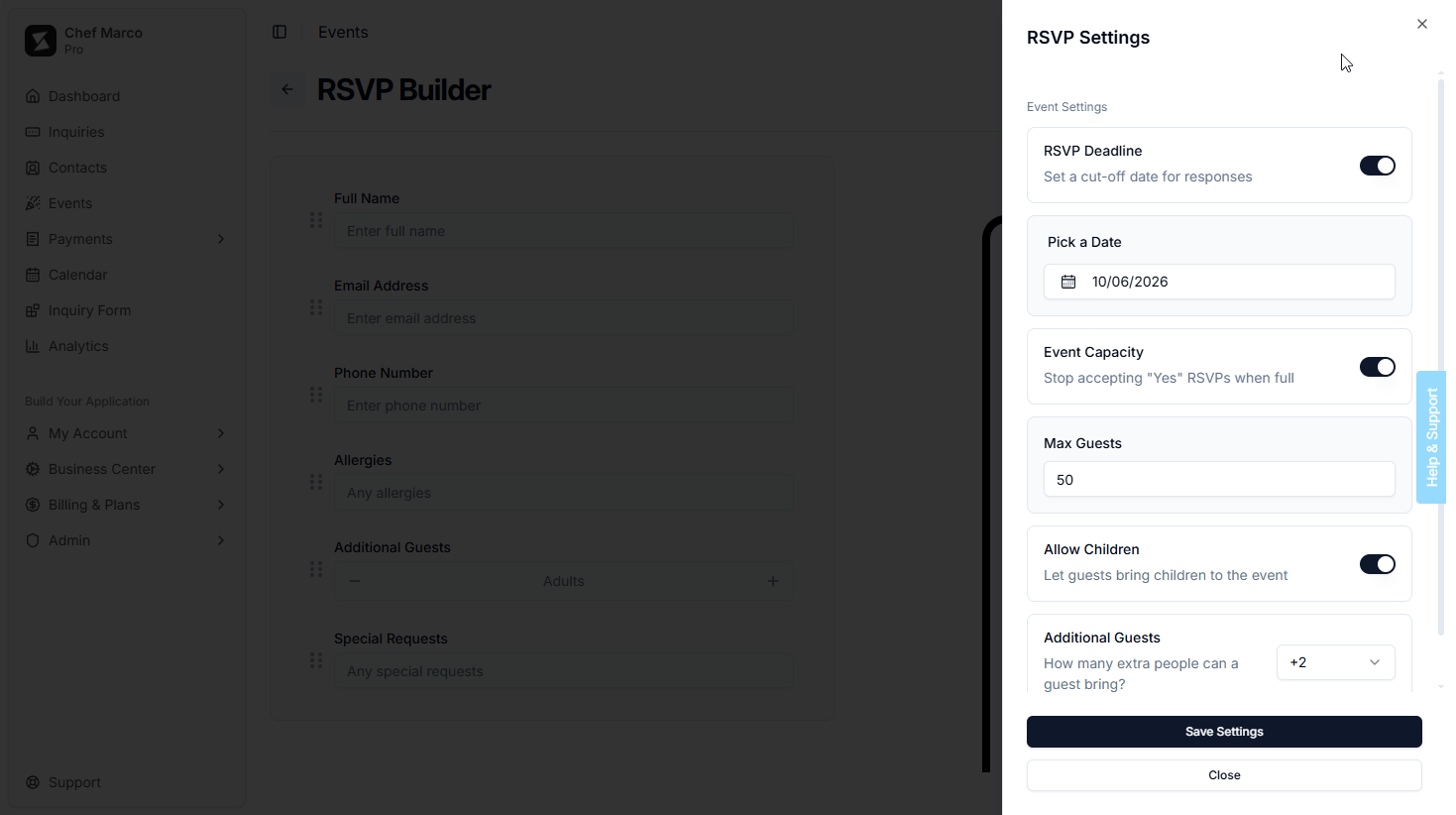
- From the top-right corner of the RSVP Builder, select RSVP Settings.
- Use the settings panel to configure your RSVP preferences.
RSVP Deadline
Set a deadline when you need guests to respond by a specific date.
This can be helpful when you need a final guest count before purchasing ingredients, preparing food, creating seating arrangements, or finalizing other event details.
Event Capacity
Set a maximum number of guests when an event has a limited capacity.
Once the capacity is reached, Sous will stop accepting Yes RSVPs and display a friendly message to contact the host (your client) for anyone attempting to submit. This is useful for events with a fixed number of seats, limited space, or a maximum number of guests that can be accommodated.
Allow Children
Enable this option when children are welcome at the event. The age is set to 12 and under.
Guests will be able to indicate how many children are attending in addition to the number of adults. This can help you plan portions, seating, and other event details.
Additional Guests
Enable this option when a guests are allowed to bring additional +1's.
RSVP allows up to 10 additional guests. This is useful when your client sends the RSVP to one person who needs to respond for their family, household, or group.
Share the RSVP
Once your RSVP is ready, select Copy Share Link from the top-right corner of the RSVP Builder and give to your client and/or host.
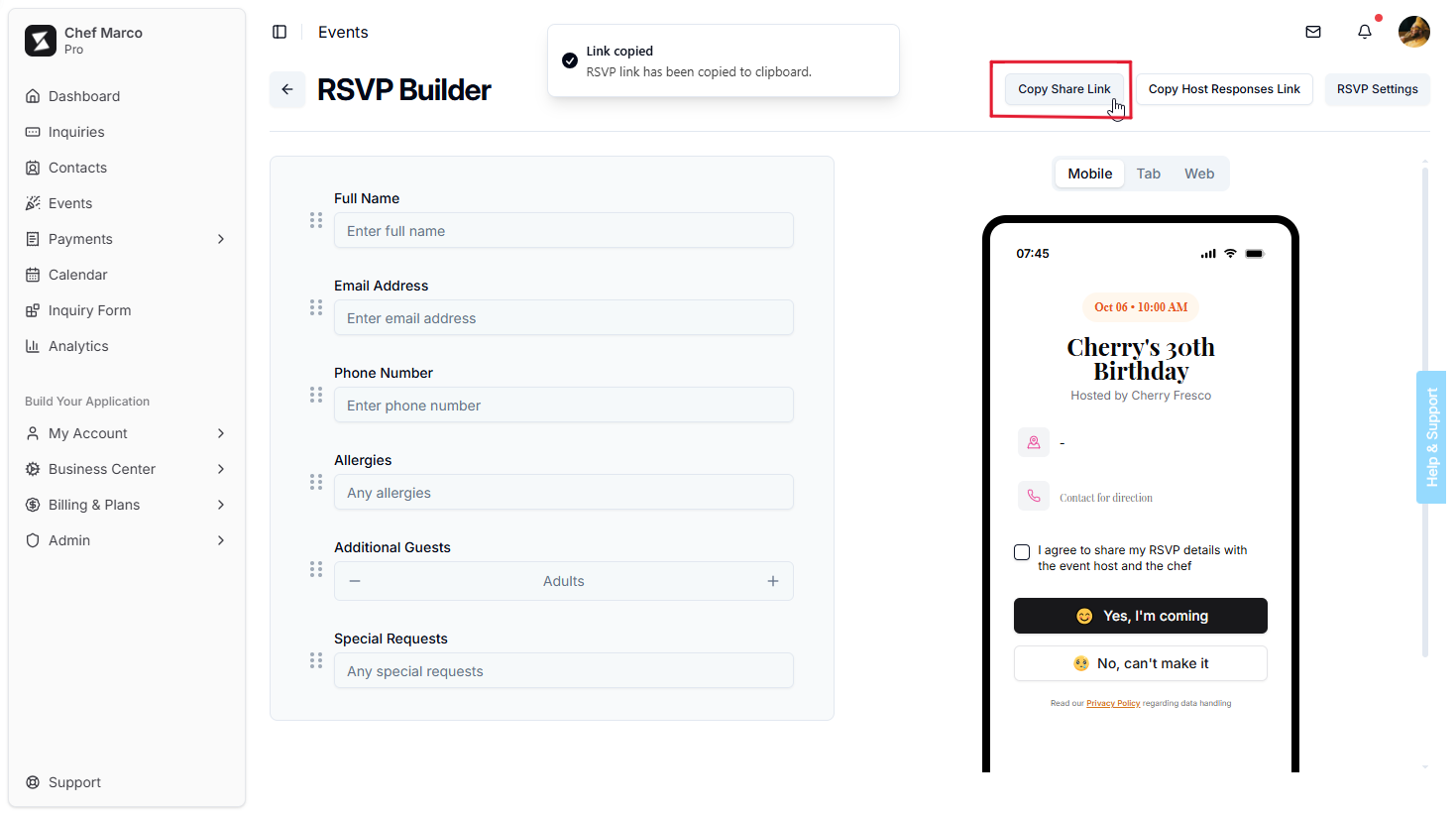
The link is copied to your clipboard so you can paste it into a text message, email, or other message and your client can then share the RSVP link with their guests.
Share Link: This is the link guests use to submit their RSVP.
Give Your Client a Way to View Responses
If your client wants to keep track of their guest responses, use the Copy Host Responses Link.
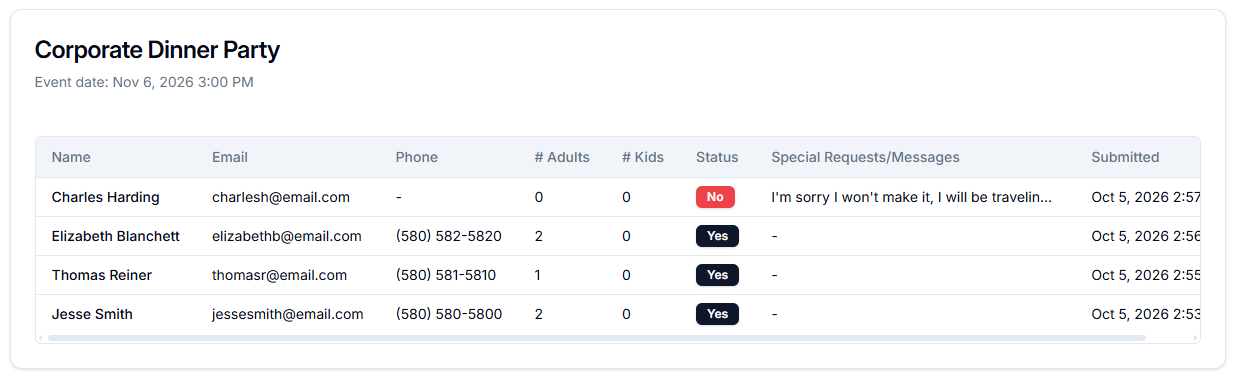
This gives your client a public page where they can view the submissions from guests without needing to log in to your Sous account.
Host Responses Link: This is the link your client uses to view guest submissions.
View Guest Responses
As guests respond, their information is organized on the event's RSVP page.
Additionally, guests are segmented separately on your Contacts list.
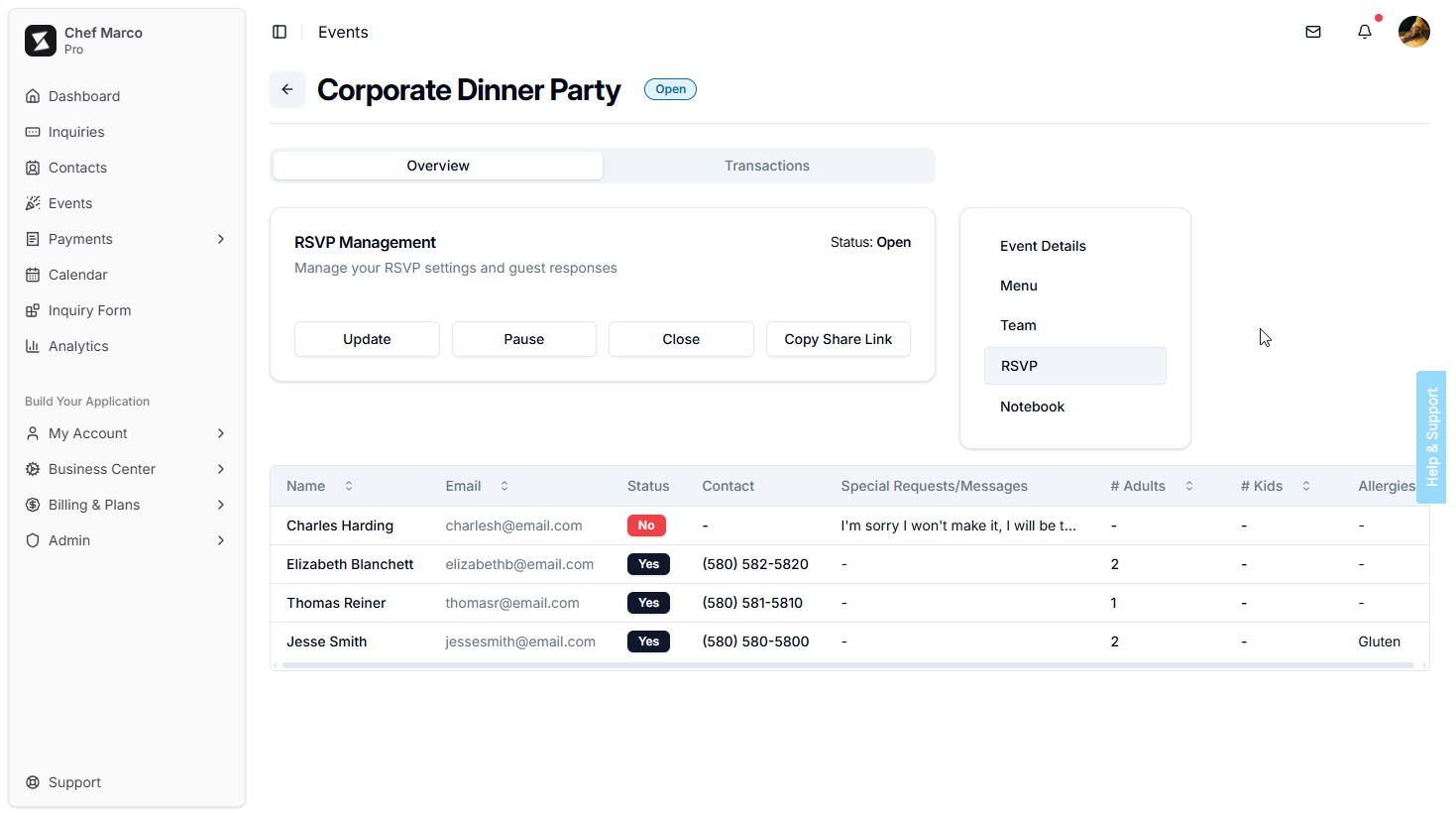
You can see:
- Name
- Attendance Status
- Phone
- Special Requests / Message
- # of Adults
- # of Children
- Allergies
This gives you the information you need to prepare for the event without having to collect and organize responses manually.
Pause an RSVP
Need to temporarily stop accepting responses?
Select Pause from the RSVP page. You can resume the RSVP at any time when you're ready to accept responses again.
Pausing is useful when you need to temporarily stop submissions but aren't ready to close the RSVP permanently.
Close an RSVP
When you're finished collecting responses, select Close.
Closing the RSVP stops guests from submitting new responses. If you need to collect additional responses later, you can Reopen the RSVP.
Copy the Share Link Later
You don't have to return to the RSVP Builder to share your RSVP again.
From the event's RSVP page, select Copy Share Link whenever you need to send the RSVP to another guest or resend it to your client.
A Simple RSVP Workflow
Create the RSVP → Configure your settings → Preview it → Send the Share Link to your client → Monitor responses
Your client can share the RSVP with their guests, while Sous keeps the responses organized with the event.
Was this article helpful?
That’s Great!
Thank you for your feedback
Sorry! We couldn't be helpful
Thank you for your feedback
Feedback sent
We appreciate your effort and will try to fix the article