If you were maintaining client information before subscribing to Sous, you can import them all using a CSV file.
Before you begin
- The import tool only works with CSV files.
- Each contact in your file must have a first name and email address.
- Learn how to prepare your CSV import file and how to save your spreadsheet as a CSV file.
Instructions
- Select Contacts from the left menu.
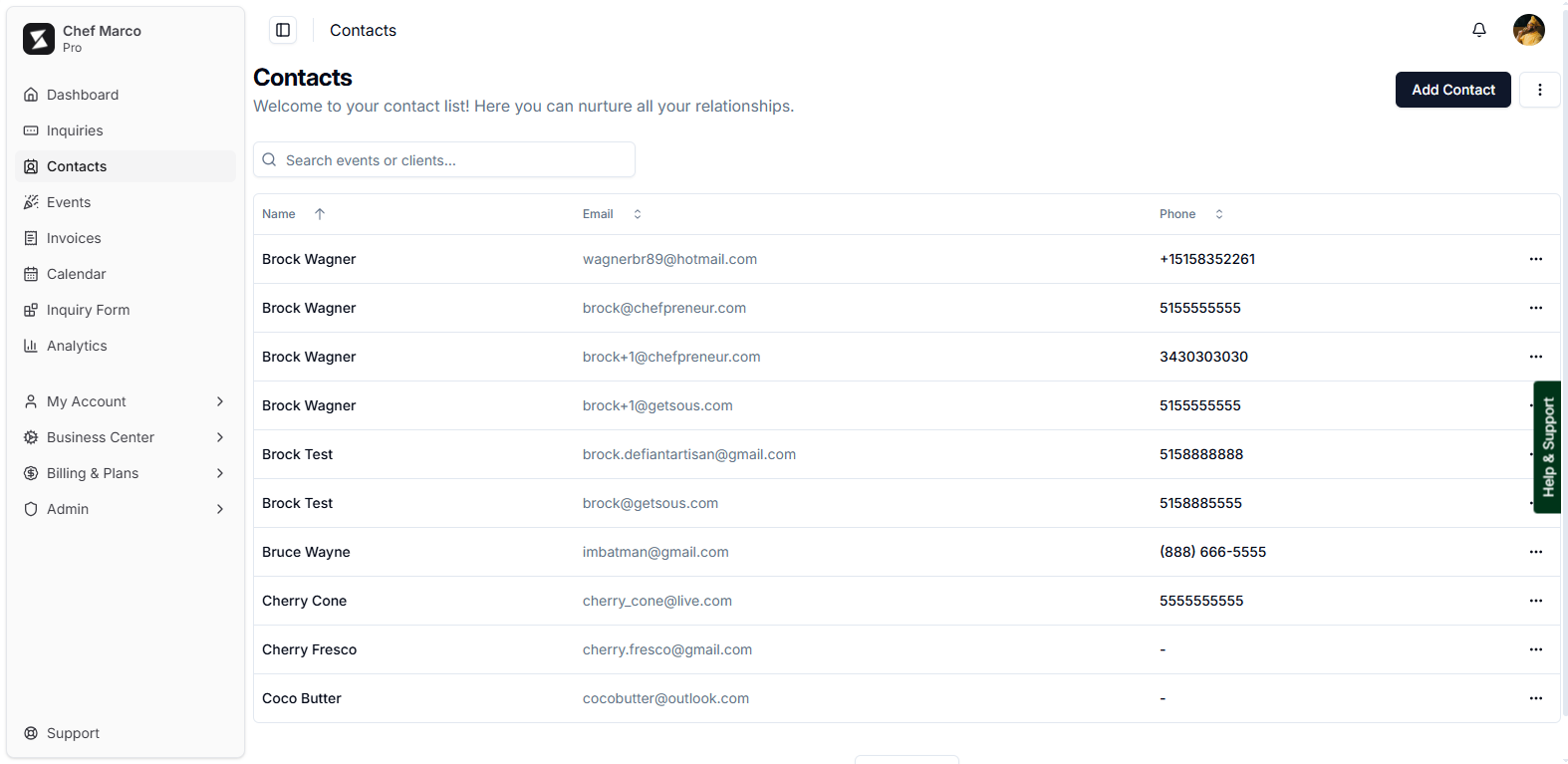
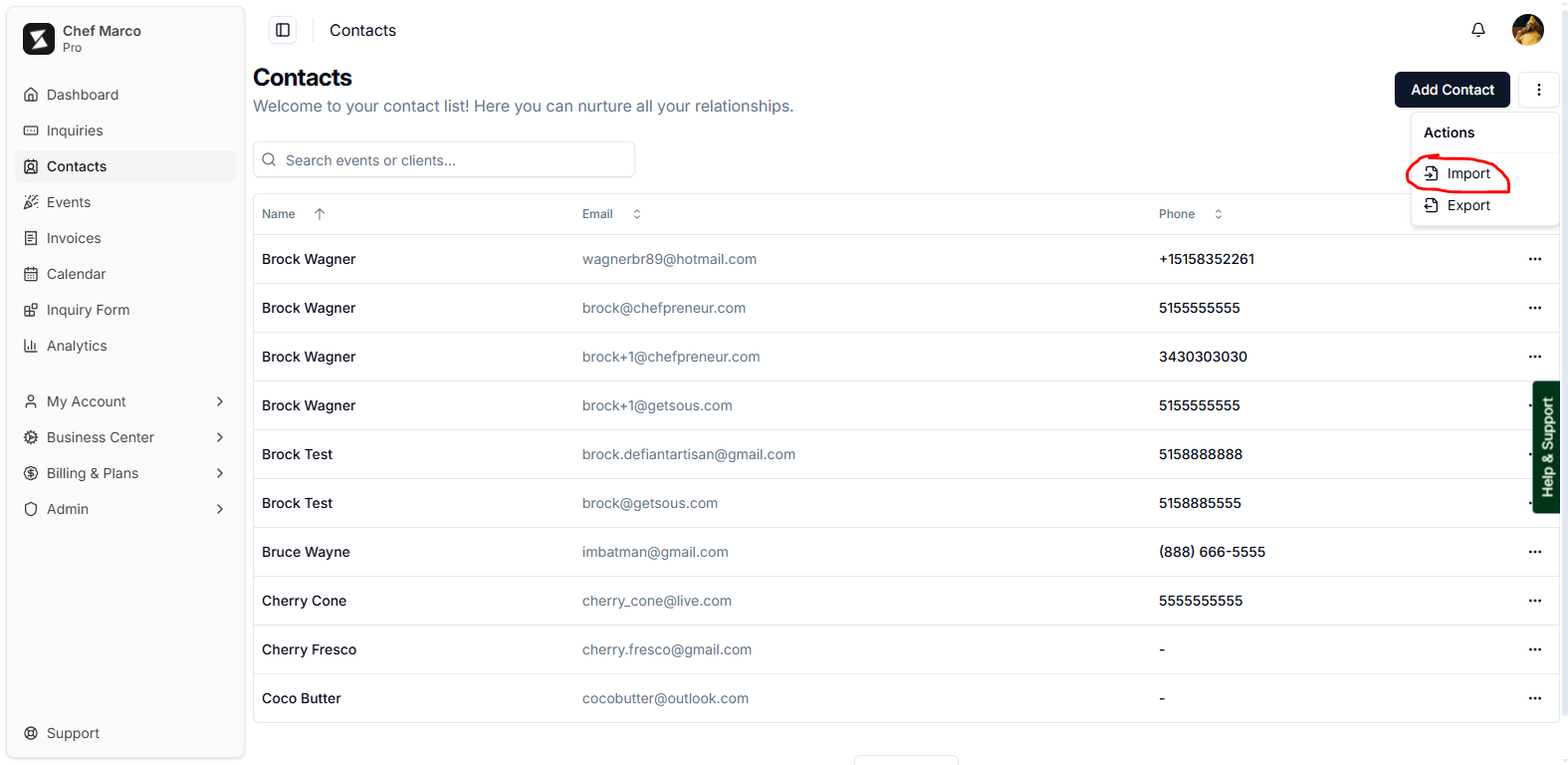
- Click the three-dot (⋮) menu and select Import.
- In the Import screen, click Choose File.
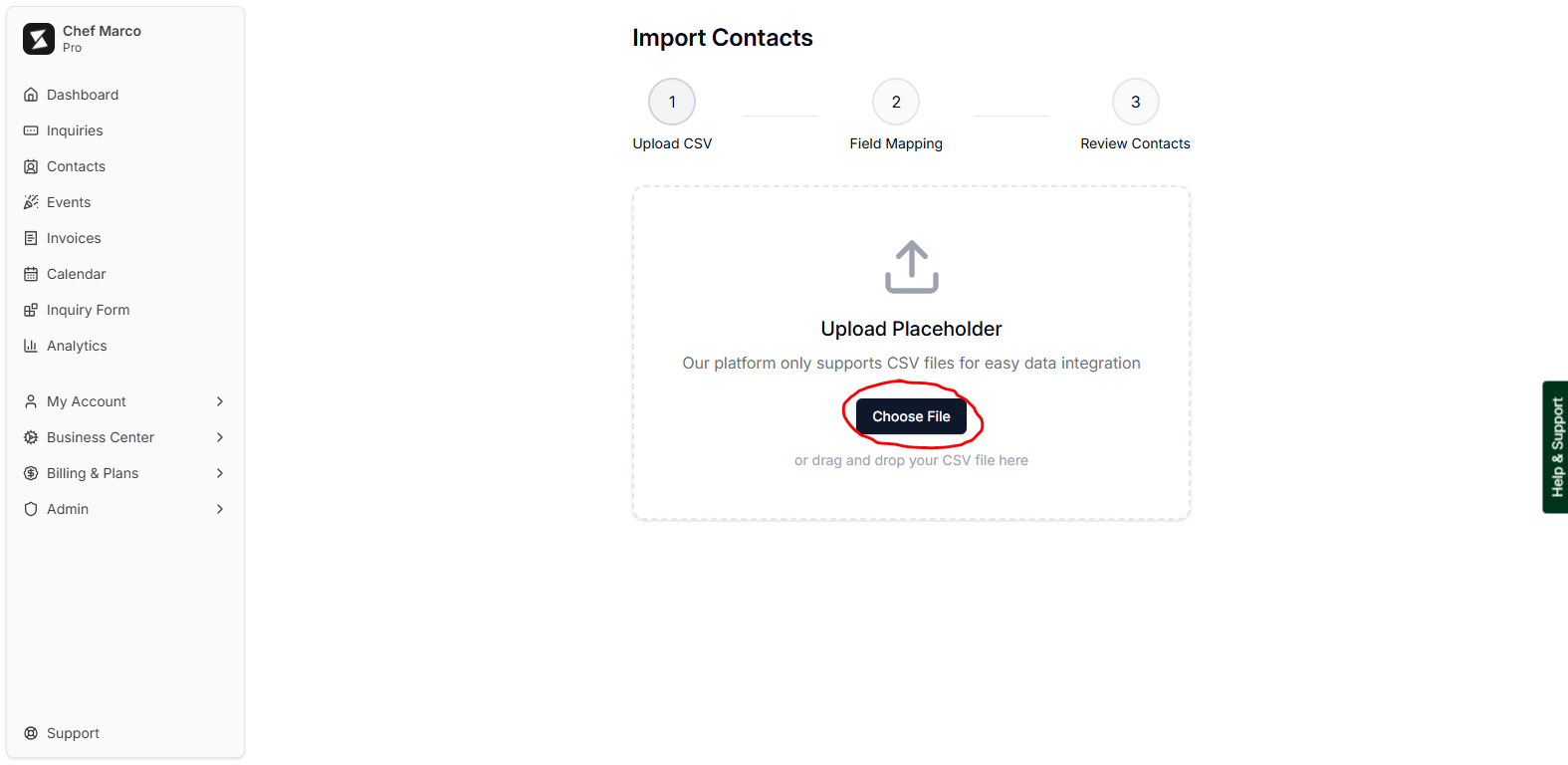
- Navigate to the CSV file you wish to import and select it.
- Scroll down and click Next.
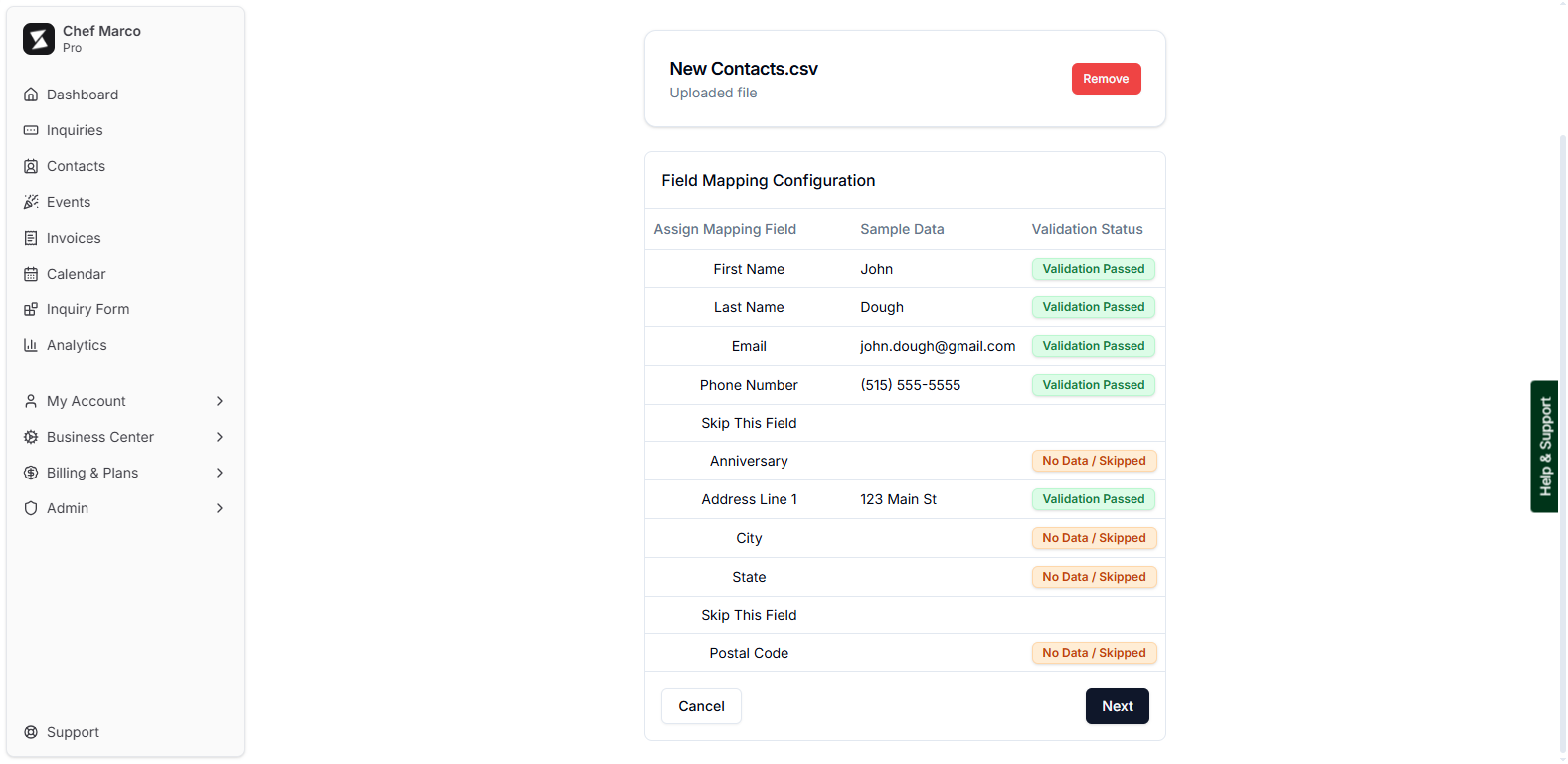
- Review that each field in your CSV file matches properly in Sous, then click Save and Confirm.
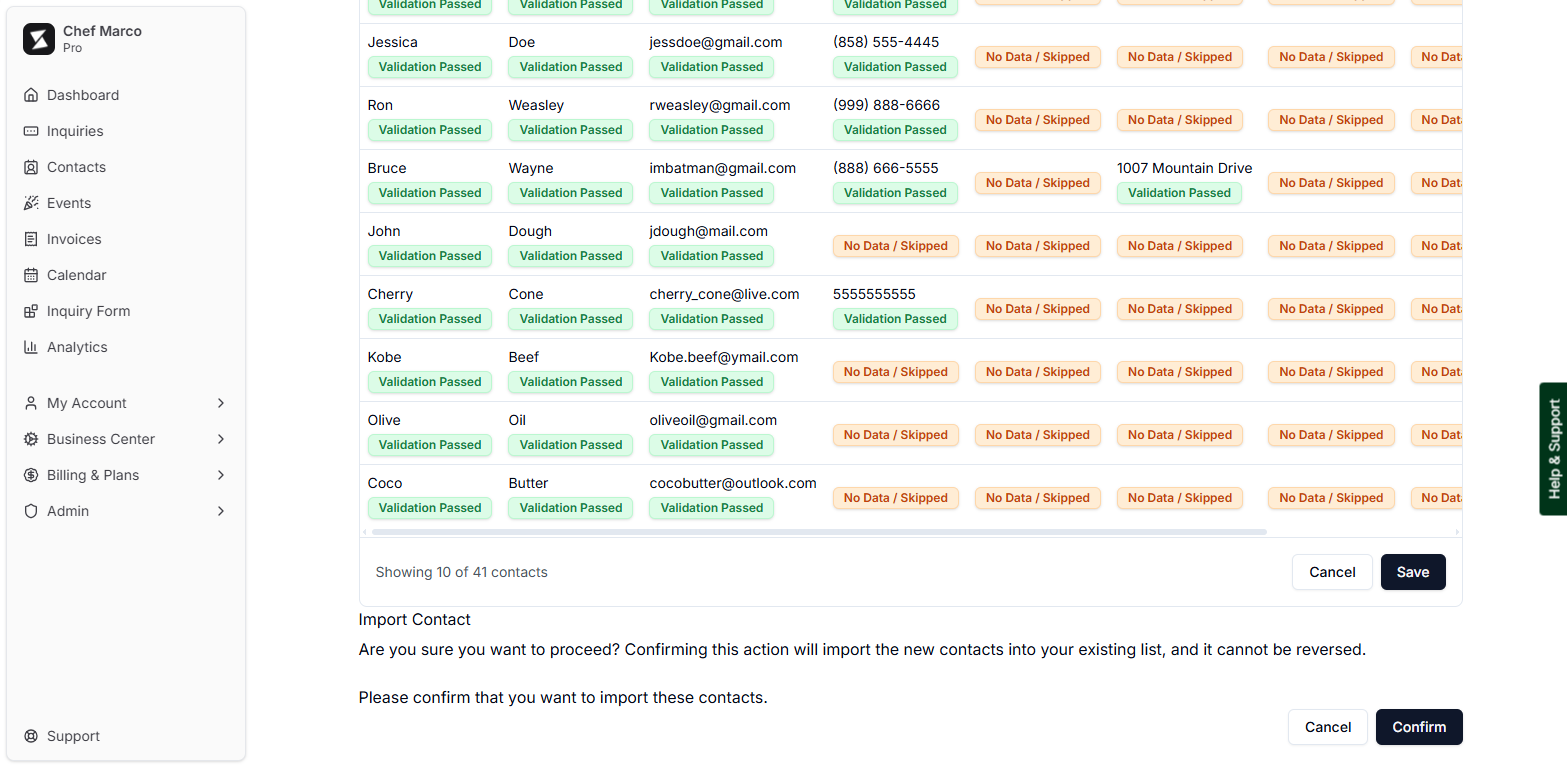
You should see the first contact in your CSV file display under the Sample Data column. The Validation Status indicates the value is in the expected format (i.e. email addresses vs phone number)Was this article helpful?
That’s Great!
Thank you for your feedback
Sorry! We couldn't be helpful
Thank you for your feedback
Feedback sent
We appreciate your effort and will try to fix the article